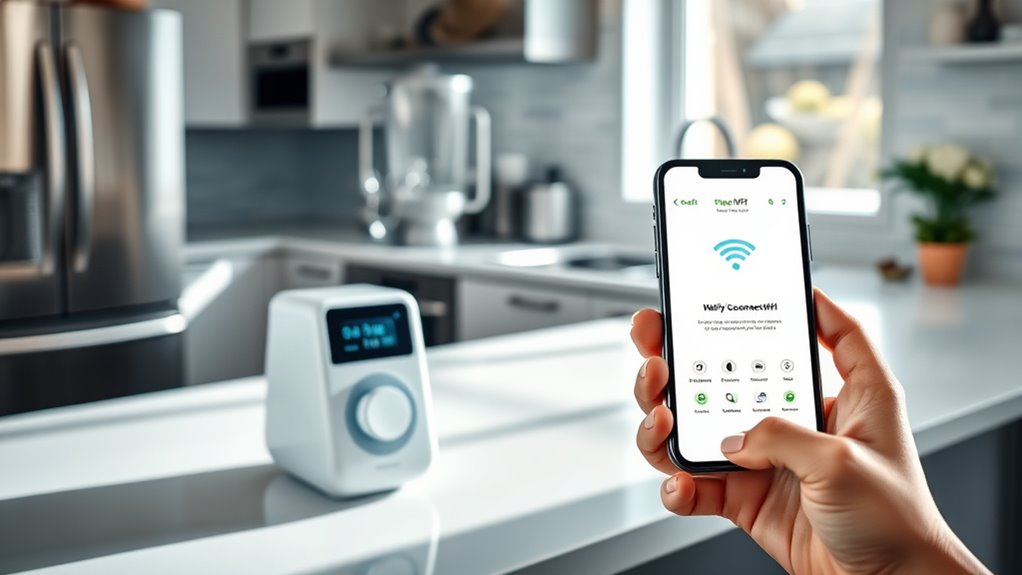
To connect your smart kitchen gadget to Wi-Fi, first verify it’s compatible and powered on in pairing mode. Download the manufacturer’s app and connect your device to the same Wi-Fi network, preferably 2.4 GHz. Open the app and follow the on-screen instructions to detect and set up the device. Troubleshoot if needed by checking signal strength and router settings. Keep going to discover detailed steps that will make your setup smooth and hassle-free.
Key Takeaways
- Ensure your device is compatible with your Wi-Fi network, especially if it only supports 2.4 GHz.
- Download and open the manufacturer’s app, then follow on-screen setup instructions.
- Connect your smartphone or tablet to the same Wi-Fi network the device will use.
- Power on the gadget and enable Wi-Fi or pairing mode as needed, then wait for detection.
- Complete the setup in the app, assign preferences, and check for firmware updates for optimal connection.

Connecting your smart kitchen gadgets to Wi-Fi is a straightforward process that allows you to unlock their full potential. Once connected, you can control your devices remotely, receive updates, and seamlessly integrate them into your smart home system. Before diving into the setup, it’s essential to ensure your gadget is compatible with your Wi-Fi network. Not all devices work with every router or network configuration, so double-check the manufacturer’s specifications for device compatibility. This step can save you time and prevent frustration during setup.
Start by downloading the dedicated app recommended by the manufacturer. Most smart kitchen gadgets rely on their app for initial setup and ongoing control. Make sure your smartphone or tablet is connected to the same Wi-Fi network you plan to connect your device to. This common connection simplifies the process and guarantees your device can communicate with your app successfully. Open the app and follow the on-screen instructions, which typically involve creating an account or logging in.
Download the app recommended by the manufacturer and stay connected to the same Wi-Fi network for smooth setup.
Next, power on your smart kitchen gadget and enable its Wi-Fi mode if necessary. Many devices automatically enter pairing mode when powered on or after a reset. If your device doesn’t do this automatically, consult the user manual for specific instructions on activating pairing mode. Once the device is in pairing mode, the app should detect it within a few moments. If it doesn’t, verify your phone’s Wi-Fi is enabled and that you’re connected to the correct network.
If you encounter issues during the process, remote troubleshooting can be your best friend. Check that your Wi-Fi signal is strong and that your router isn’t blocking device connections. Some devices might have trouble connecting to certain network frequencies or security settings, like 5 GHz networks or hidden SSIDs. If problems persist, restarting your router and the device often resolves temporary glitches. Additionally, understanding device compatibility can help prevent connection issues caused by incompatible hardware or network settings.
Device compatibility plays an essential role during setup. Even if the app detects your gadget, it might not function correctly if your Wi-Fi network isn’t compatible. For example, some smart gadgets only work with 2.4 GHz networks, not 5 GHz ones. Confirm your network settings and, if needed, switch your router to a compatible band. Also, ensure your device’s firmware is up to date, as outdated firmware can cause connection issues.
Once your device connects successfully, follow the app’s prompts to finalize setup—renaming the device, setting preferences, or connecting it to other smart home integrations. With everything in place, you’ll be able to control your smart kitchen gadget remotely, giving you greater convenience and efficiency. Remember, understanding device compatibility and knowing how to troubleshoot remotely are key to a smooth, hassle-free connection process.
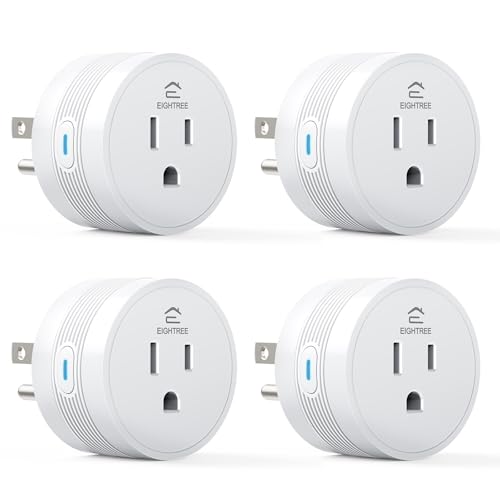
EIGHTREE 15A Smart Plug Works with Alexa & Google Home, Smart Outlet 4 Pack
- High-Load Capacity: Supports devices up to 15A
- Easy Setup: Connects via Bluetooth and Wi-Fi
- Voice Control Compatibility: Works with Alexa and Google Home
As an affiliate, we earn on qualifying purchases.
As an affiliate, we earn on qualifying purchases.
Frequently Asked Questions
Can I Connect Multiple Devices Simultaneously?
Yes, you can connect multiple devices simultaneously. During device pairing, make sure your network configuration supports multiple connections, like a dual-band Wi-Fi router. Keep each gadget within range and follow the pairing instructions for each device. This way, your smart kitchen gadgets work seamlessly together. Just remember, a strong, stable network is key to avoiding connection issues when managing multiple devices at once.
What Should I Do if the Wi-Fi Connection Fails?
If your Wi-Fi connection fails, start troubleshooting connectivity by checking if your device is within range of your router. Restart your router and verify it’s properly configured. You may need to update your router’s firmware or reset its settings. Confirm your device’s Wi-Fi is enabled and connected to the correct network. If issues persist, consult your device’s manual or contact support to resolve router configuration problems.
Are There Compatibility Issues With Certain Routers?
You might encounter router compatibility issues, especially if your device’s firmware isn’t up-to-date. Some smart gadgets only work with certain routers or require specific features. To avoid surprises, check the manufacturer’s recommended routers and verify your firmware is current. Updating your router’s firmware can resolve many compatibility problems, ensuring your gadget connects smoothly and functions flawlessly, keeping your smart kitchen running seamlessly.
How Secure Is My Smart Kitchen Gadget on Wi-Fi?
Your smart kitchen gadget’s Wi-Fi security depends on your network setup and device features. While manufacturers often implement encryption to protect privacy, there’s still a risk of privacy concerns if vulnerabilities exist. Regular firmware updates are vital, as they patch security flaws and enhance protection. To keep your device secure, use strong passwords, enable network encryption, and stay current with firmware updates, reducing potential security risks and safeguarding your privacy.
Can I Connect Gadgets Without a Smartphone App?
You can often connect smart kitchen gadgets without a smartphone app through manual setup, but it varies by device. Check your gadget’s manual for specific instructions, such as pressing a reset button or using physical controls. If you encounter issues, troubleshooting tips include resetting the device, ensuring proper Wi-Fi connection, and consulting the manual. While some gadgets need apps, others allow direct setup for quick, app-free connection.
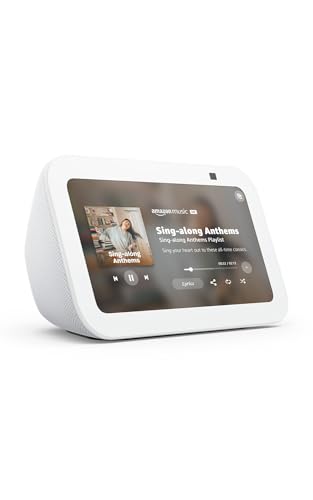
Amazon Echo Show 5 (newest model), Smart display, Designed for Alexa+, 2x the bass and clearer sound, Glacier White
- Display Size: 5.5-inch screen for easy viewing
- Enhanced Sound: Twice the bass with clearer audio
- Smart Home Control: Manage lights and thermostats remotely
As an affiliate, we earn on qualifying purchases.
As an affiliate, we earn on qualifying purchases.
Conclusion
Now that you’ve mastered connecting your smart kitchen gadgets to Wi-Fi, you’re all set to impress friends with your tech-savvy kitchen. Who knew that turning on a smart toaster or fridge could be so satisfying? Just don’t forget to actually use those features — or you’ll be the only one in the room with a fancy gadget that’s just taking up space. Happy smart cooking, and remember: sometimes, the hardest part is just plugging it in!

The Confident Cosori Iconic Stainless Steel Air Fryer Cookbook: Quick and Easy Recipes Ready in Under 30 Minutes for Beginners, Families and Busy People (Smart Kitchen Appliance Recipes)
As an affiliate, we earn on qualifying purchases.
As an affiliate, we earn on qualifying purchases.
EIGHTREE 15A Smart Plug Works with Alexa & Google Home, Smart Outlet 4 Pack
- High-Load Capacity: Supports devices up to 15A
- Easy Setup: Connects via Bluetooth and Wi-Fi
- Voice Control Compatibility: Works with Alexa and Google Home
As an affiliate, we earn on qualifying purchases.
As an affiliate, we earn on qualifying purchases.