
If your Wi-Fi coffee maker has connection or brew issues, start by checking your Wi-Fi signal strength and ensuring your network isn’t congested. Confirm the device is properly powered and reset it if needed. Reconnect it to your Wi-Fi using the app, and look for firmware updates to fix glitches. Make sure your device is compatible with your network setup. If problems persist, there are more steps you can take to troubleshoot effectively.
Key Takeaways
- Ensure the coffee maker is connected to a stable Wi-Fi network with strong signal strength.
- Restart the device and router to clear temporary glitches and re-establish the connection.
- Reset the Wi-Fi module on the coffee maker following manufacturer instructions.
- Check and update the device firmware via the manufacturer’s app or website.
- Verify water reservoir and brewing settings to resolve any brewing process issues.
Checking Your Wi-Fi Network and Signal Strength

Before troubleshooting your Wi-Fi coffee maker, it’s essential to verify your Wi-Fi network is functioning correctly. Start by checking the Wi-Fi signal stability in your area. If the signal is weak or fluctuates often, your coffee maker might struggle to stay connected. Also, consider network congestion; multiple devices streaming or downloading can slow down your network, leading to connection issues. Use your phone or computer to run a speed test and see if your internet is running smoothly. If you notice high latency or low speeds, try reducing the number of active devices or restarting your router. Ensuring a stable Wi-Fi connection minimizes the chances of interference or dropouts, helping your coffee maker stay reliably connected. Additionally, network interference from other electronic devices can disrupt your Wi-Fi signal, so consider relocating your router or minimizing electronic interference nearby. Maintaining Wi-Fi signal strength can significantly improve your device’s connection stability and overall performance, especially when signal boosters or mesh networks are used to enhance coverage.
Ensuring Proper Power and Resetting the Coffee Maker

Start by checking that the coffee maker is plugged in securely and the power button is on. If it still doesn’t work, reset the Wi-Fi module by unplugging the machine for a few seconds, then plugging it back in. Make sure the power button is functioning properly to avoid any power issues. Additionally, verify that your wifi connection is stable and functioning correctly to ensure proper communication with the device. Ensuring proper device setup can help prevent common connectivity problems and improve overall performance. Users should also consider reviewing cookie management settings on their network if persistent connectivity issues occur. Regularly updating the firmware can also help maintain device stability and prevent unexpected errors. Proper network configuration is essential for reliable device operation and connectivity.
Check Power Connection
If your Wi-Fi coffee maker isn’t responding, the first step is to verify it’s properly plugged in and receiving power. Check that the power cord is securely connected to a functioning power outlet. Look for the power indicator light on the machine; if it’s off, the device isn’t getting power. Try plugging the coffee maker into a different outlet to rule out a faulty socket. Ensure there are no tripped circuit breakers or blown fuses. If the power indicator still doesn’t turn on after confirming the outlet works, unplug the coffee maker, wait 30 seconds, then plug it back in. This simple check can resolve many power-related issues and get your coffee maker ready for the next step in troubleshooting. Additionally, inspecting the power connection regularly can prevent future issues and maintain consistent performance, especially since consistent power supply is essential for reliable Wi-Fi connectivity. Regularly testing the power supply can help identify potential problems before they impact your device’s operation. Being aware of electrical safety is also crucial to prevent hazards during troubleshooting and maintenance. Ensuring that the electrical components are in good condition can further help avoid malfunctions and ensure safe operation.
Reset Wi-Fi Module
To reset the Wi-Fi module on your coffee maker, make certain the device is properly powered and then perform a simple reset. First, ensure the coffee maker is plugged in and turned on. Locate the Wi-Fi module, typically near the control panel or inside the device. Many models have a dedicated reset button or a combination of buttons to initiate the reset procedures. Press and hold the reset button for about 10 seconds, or follow the manufacturer’s instructions for your specific model. This process clears any temporary glitches and re-establishes a fresh connection. After resetting, wait a few moments for the Wi-Fi module to reinitialize. This simple step often resolves connectivity issues caused by minor software hiccups or network conflicts. Additionally, consulting the kitchen science & materials section can help understand how internal components like the Wi-Fi module function and respond to resets, especially in relation to internal component behavior and how it can be affected by power fluctuations. Understanding electrical stability can further aid in maintaining reliable connections for your smart kitchen devices. Ensuring a stable power supply can prevent voltage fluctuations that might interfere with the Wi-Fi module’s operation.
Verify Power Button
Before troubleshooting your Wi-Fi connection, make sure the coffee maker is properly powered on. Locate the power button and press it firmly. Check the indicator light; it should turn on or blink, signaling the device is receiving power. If the light remains off, press the power button again or unplug the machine for 30 seconds, then reconnect and press the button to restart. Additionally, verify that your device isn’t experiencing issues related to Protect Your Savings: Avoid Gold IRA Scams, which emphasizes the importance of thorough checks and avoiding potential malfunctions. If the indicator light doesn’t activate, there may be an electrical issue. Reset the machine and verify power supply before proceeding. Ensuring the power source is stable can prevent common connectivity and functionality problems. Confirming the electrical connection is secure helps maintain consistent operation and prevents unnecessary troubleshooting. Regularly inspecting the electrical components can help identify underlying issues before they cause failure.
Reconnecting the Device to Wi-Fi
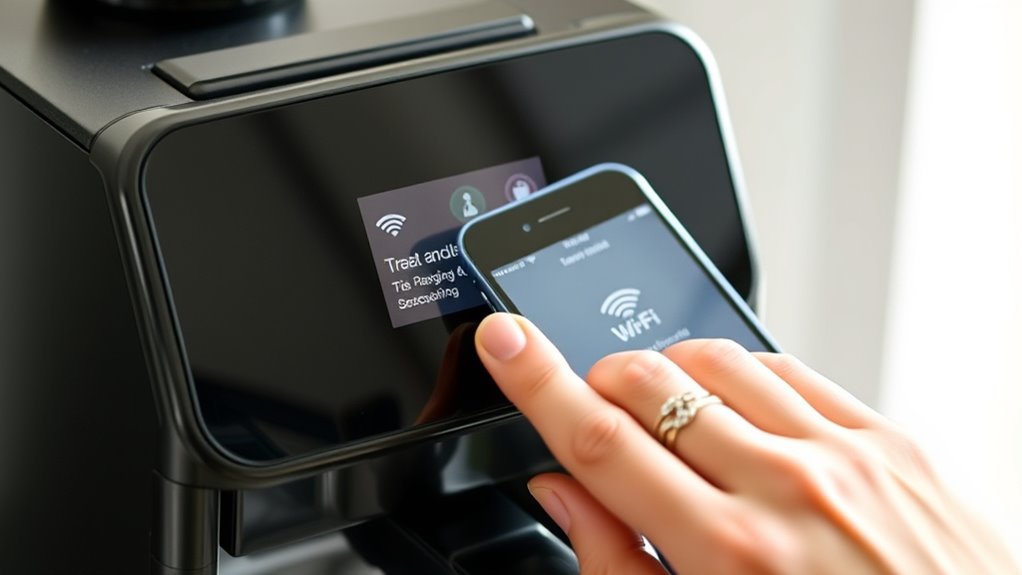
To reconnect your coffee maker to Wi-Fi, start by checking your signal strength to guarantee it’s strong enough. If the connection is unstable, restart the device to refresh its network settings. Then, use the app settings to complete the reconnection process. For optimal results, ensure your network configuration aligns with your device’s specifications for seamless connectivity.
Verify Wi-Fi Signal Strength
If your Wi-Fi coffee maker isn’t responding properly, checking the Wi-Fi signal strength is a essential first step. A weak signal can cause connection drops or slow data transfer, affecting your device’s performance. To verify this, use your router’s app or a Wi-Fi analyzer to assess signal strength around your coffee maker’s location. If the signal is weak, consider moving your router closer or removing obstacles that cause network interference. Avoid placing the coffee maker in areas with thick walls or electronic devices that can disrupt the connection. Ensuring a strong, stable Wi-Fi signal is critical for your coffee maker to stay connected and operate smoothly. Addressing network interference and enhancing signal strength often resolves connectivity issues before proceeding to further troubleshooting steps.
Restart Coffee Maker Device
Sometimes, simply restarting your coffee maker can resolve Wi-Fi connectivity issues. Power cycling or rebooting the device helps reset its network connection. To do this effectively:
- Unplug the coffee maker from the power source.
- Wait 30 seconds to allow any residual charge to clear.
- Plug the device back in, ensuring it powers on completely.
- Check if the Wi-Fi connection is restored.
This device reboot clears temporary glitches and refreshes the network link. Make sure your device is properly powered during this process. If connectivity problems persist after power cycling, consider further troubleshooting steps. Restarting is a simple yet often effective way to resolve minor Wi-Fi issues and get your coffee maker back online.
Reconnect via App Settings
After restarting your coffee maker didn’t resolve the Wi-Fi issue, the next step is to reconnect the device through the app settings. Open the coffee maker’s app on your smartphone and navigate to the device or Wi-Fi settings. Confirm your phone is connected to the same Wi-Fi network you want the coffee maker to join. Tap on the option to reconfigure Wi-Fi or reconnect device, then follow the on-screen instructions. You may need to select your network and enter your Wi-Fi password for proper app configuration. If the app prompts a test connection, do so to confirm Wi-Fi connectivity has been restored. This process helps ensure your coffee maker is properly linked to your network, resolving connection issues and stabilizing your brew experience.
Updating Firmware and Software

Keeping your Wi-Fi coffee maker up to date is essential for ensuring smooth connectivity and ideal performance. Regular firmware updates and software upgrades fix bugs, improve features, and enhance security. To update your device, follow these steps:
Regular updates keep your Wi-Fi coffee maker secure, reliable, and performing at its best.
- Open the manufacturer’s app or website and check for available updates.
- Download the latest firmware or software package.
- Connect your coffee maker to Wi-Fi if it isn’t already.
- Install the update, following on-screen instructions carefully.
Ensure your device remains connected during the process, and avoid interrupting the update. Keeping firmware and software current prevents connection issues and enhances brewing reliability. Regular updates help your coffee maker perform at its best and stay secure against vulnerabilities.
Verifying Compatibility With Your Network

Ensuring your Wi-Fi coffee maker works seamlessly with your network starts with verifying compatibility. Compatibility issues often occur if your device doesn’t meet the specific network requirements. Check the manufacturer’s specifications to confirm that your coffee maker supports your Wi-Fi frequency band, such as 2.4 GHz or 5 GHz. Many devices only operate on a single band, so knowing your network setup is essential. Additionally, verify that your router’s security settings, like WPA2 encryption, are compatible with the coffee maker. If your network has custom configurations or firewalls, these could also create issues. By confirming your device’s compatibility with your network’s requirements, you can prevent many connection problems before they start, ensuring smoother setup and reliable operation.
Troubleshooting Brewing Issues and Settings
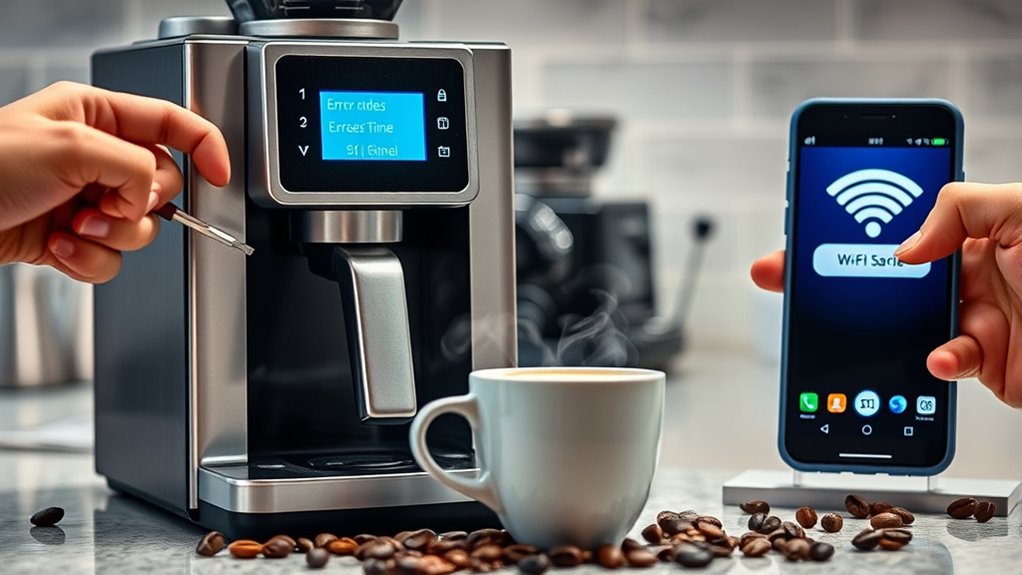
If your Wi-Fi coffee maker isn’t brewing properly, the issue might lie in its settings or the brewing process itself. First, check your brew strength settings; adjusting this can make your coffee more or less intense. Second, verify the water temperature; if it’s too low, the coffee may be weak, while too high could cause bitterness. Third, ensure the brewing schedule is correctly set to avoid under- or over-brewing. Fourth, confirm the water reservoir is full and properly seated, as low water levels can disrupt brewing. By reviewing and adjusting these settings—brew strength, water temperature, schedule, and water level—you can troubleshoot most brewing issues and improve your coffee’s quality.
Clearing Cache and App Data

Sometimes, residual data or corrupted files can cause your Wi-Fi coffee maker’s app to malfunction. To fix this, start by clearing the app cache, which stores temporary files that may be causing issues. Clearing data, or data clearing, resets the app to its original state, removing all settings and saved information. This step can resolve persistent glitches, connection problems, or brew errors linked to corrupted files. To do this, go to your device’s settings, find the app in question, and select the options for clearing cache and data. Keep in mind, data clearing will erase your preferences and login details, so be prepared to set up the app again afterward. Performing these steps often restores proper app functionality and helps your Wi-Fi coffee maker connect smoothly.
Contacting Support and Advanced Troubleshooting
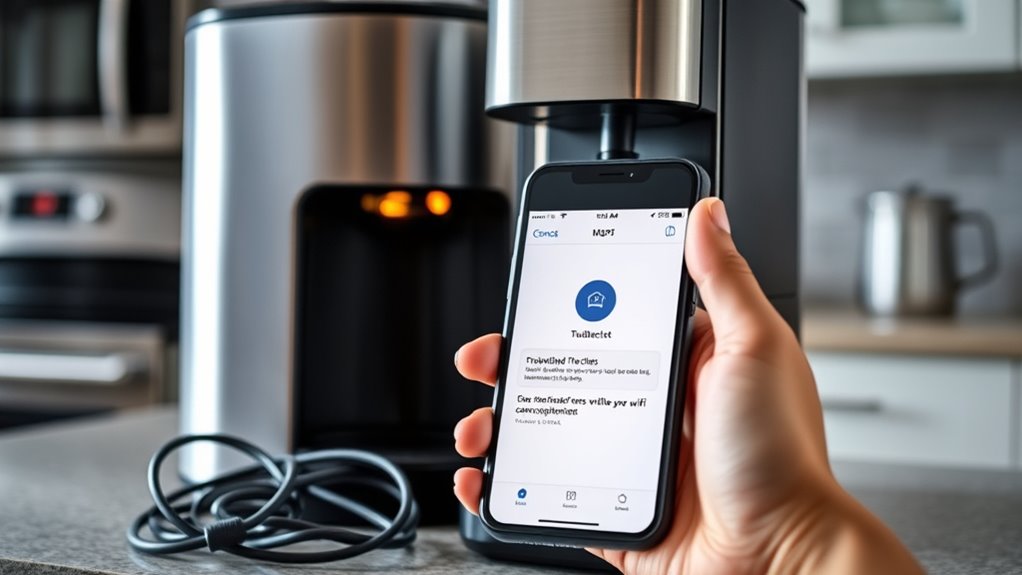
When basic troubleshooting steps don’t resolve your Wi-Fi coffee maker issues, reaching out to support can provide specialized assistance. Customer support teams are equipped to perform advanced diagnostics that you can’t do on your own. Here’s how to make the most of it:
When troubleshooting fails, contact support for expert help and diagnostics.
- Prepare your model details and a description of the issue.
- Follow the support’s instructions for capturing error logs or screenshots.
- Ask about firmware updates or hardware checks.
- Request guidance on complex troubleshooting steps or repairs.
Frequently Asked Questions
Can I Use a Wi-Fi Coffee Maker Without an App?
Yes, you can use a Wi-Fi coffee maker without the app, but you’ll miss out on its smart features. Many models rely on the app for remote control, scheduling, and customization, making them app-dependent. Without it, you’ll typically need to operate the machine manually, which may limit some of its advanced functions. If you prefer simple brewing without smart features, using it without the app is totally doable.
How Do I Change Wi-Fi Networks on My Coffee Maker?
Did you know that 85% of Wi-Fi device issues stem from network changes? To change Wi-Fi networks on your coffee maker, start with a network reset by pressing the reset button or following your model’s instructions. Then, check for a firmware update through the app or device menu. Once updated, connect to your new network by selecting it and entering the password, ensuring a smooth brewing experience.
Is There a Way to Troubleshoot if the Coffee Maker Won’T Brew?
If your coffee maker won’t brew, start troubleshooting by checking the power supply and ensuring the water reservoir is full. Run a brew cycle to see if it completes smoothly. If not, clean the brew basket and descale the machine to remove any blockages. Also, verify the Wi-Fi connection, as poor connectivity can affect operation. Following these troubleshooting steps helps identify and fix common issues preventing brewing.
What Security Settings Could Block My Coffee Maker’s Connection?
Imagine your Wi-Fi coffee maker suddenly disconnects; it could be due to Wi-Fi security settings or network restrictions. For example, if your router has MAC address filtering enabled, it might block your device. Check your Wi-Fi security settings to make certain your coffee maker is authorized, and review network restrictions like firewalls or guest networks that could prevent the device from connecting. Adjust these settings to restore seamless connection.
Can Multiple Devices Control the Coffee Maker Simultaneously?
Yes, multiple devices can control your Wi-Fi coffee maker through multi-device control features. This allows for simultaneous access, so you and others can start brewing or adjust settings from different smartphones or tablets at the same time. Just confirm your app supports multi-device control and that you’re all connected to the same Wi-Fi network. This convenience makes managing your coffee preferences easier and more flexible for everyone involved.
Conclusion
When your Wi-Fi coffee maker stalls, it’s like a paused morning sunrise—still beautiful but waiting to awaken. By checking your network and resetting the device, you’re tuning the rays of connection and warmth. Updating firmware and verifying compatibility clears the fog, while troubleshooting brewing issues brightens your day. Remember, sometimes a simple reset clears the clouds, letting your coffee flow smoothly again—turning an uncertain dawn into a perfect morning.